How to Add a New Task
Navigate to Tasks:
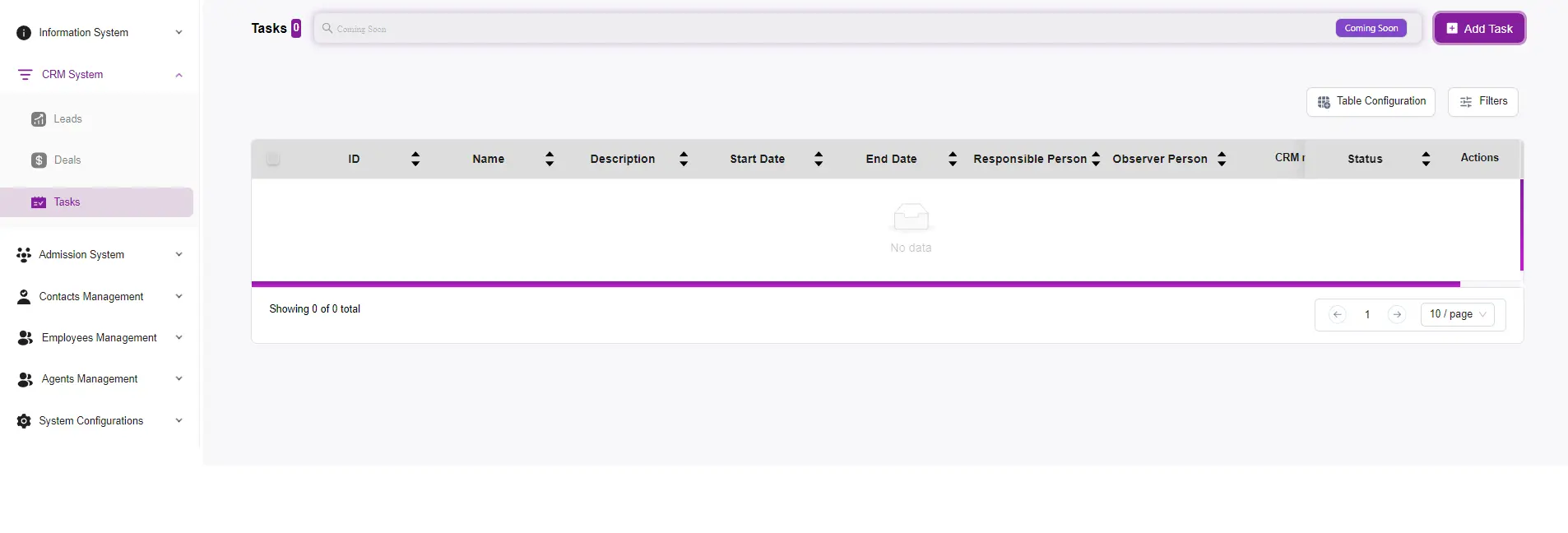
On the left-hand side menu, under the “CRM System” section, click on “Tasks.”
Step 2: Open the Add Task Form
Click Add Task:
In the Tasks section, click on the “+ Add Task” button located at the top right of the page. This will open the Add Task form.
Step 3: Fill Out the Task Details
-
Name:
Enter the name of the task. This should be a brief but descriptive title of what the task entails. -
Description:
Provide a detailed description of the task. Include any relevant information that will help the assigned person understand what needs to be done. -
Start Date:
Click on the date picker to select the start date of the task. -
Expired Date:
Set the deadline for the task by choosing the expired date. This indicates when the task needs to be completed. -
Responsible Person:
Select the team member responsible for completing the task from the dropdown list. -
Observer Person:
Choose any team members who should observe the task. These individuals will be kept informed about the task’s progress. -
Type:
Select the type of task. For example, it could be a follow-up call, meeting, email, etc. -
CRM:
Choose the relevant CRM entry (if applicable) that this task is associated with. This helps in linking the task to specific contacts, deals, or leads.

Step 4: Submit the Form
-
Review Entries:
Double-check all the information you’ve entered to ensure it is correct and complete. -
Submit:
Once you have filled in all the necessary details, click the “Submit” button at the bottom of the form. -
Confirmation:
A confirmation message will appear, indicating that the task has been successfully added to the system.
Managing Tasks
-
View and Edit Tasks:
You can view all tasks in the Tasks section. Click on a task to view its details or edit it if necessary. -
Update Status:
Change the status of a task (e.g., Pending, Completed, Overdue) by clicking on the status indicator next to each task.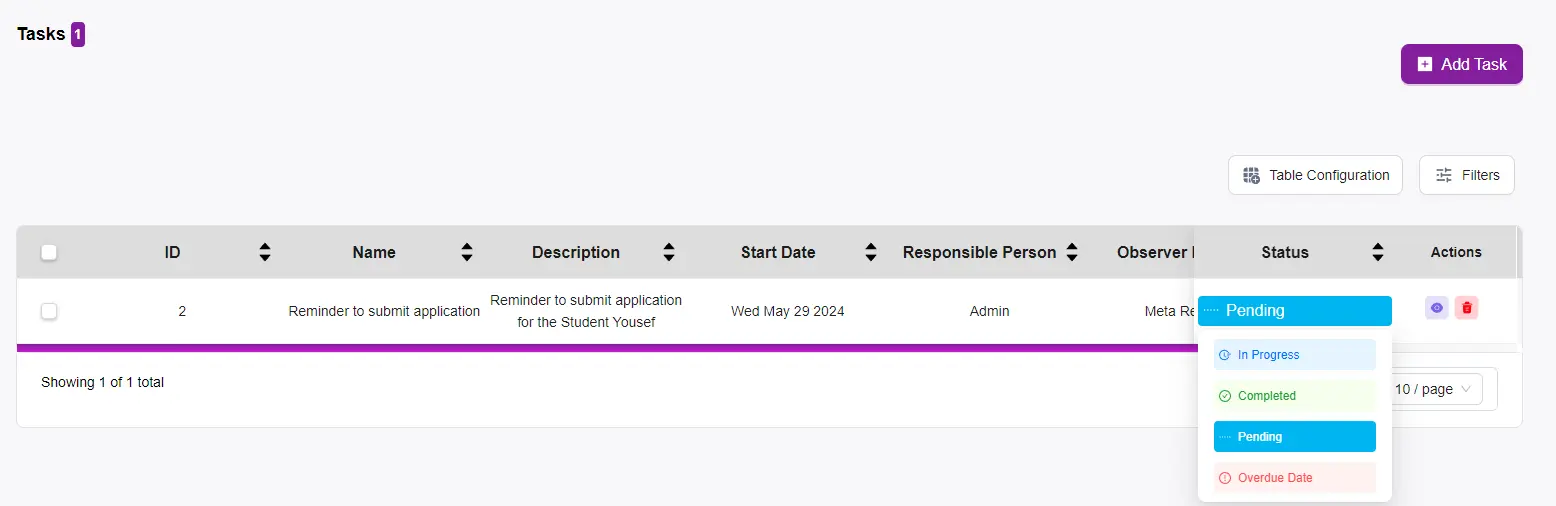
-
Delete Tasks:
If a task is no longer needed, you can delete it by clicking the trash bin icon in the Actions column.
Additional Tips
-
Notifications:
Ensure notifications are set up so responsible and observer persons receive alerts about task deadlines and updates. -
Filters:
Use the filter options in the Tasks section to quickly find tasks based on status, responsible person, or other criteria.